Add or remove MFA from mobile devices
You must be able to log in to InsureID for this procedure. Otherwise, see reset your MFA.
With your mobile devices, you can configure Multi-Factor Authentication (MFA) the following ways:
- Add many MFA methods (Okta Verify, Google Authenticator, and Phone authentication) to one device
- Remove an MFA method from your device
- Add many mobile devices to Okta Verify
- Remove a mobile device from Okta Verify
To learn how to add Okta Verify to another mobile device, see Add Okta Verify to another device.
To add MFA to mobile devices
-
On your computer, log in to https://insureid.okta.com.
-
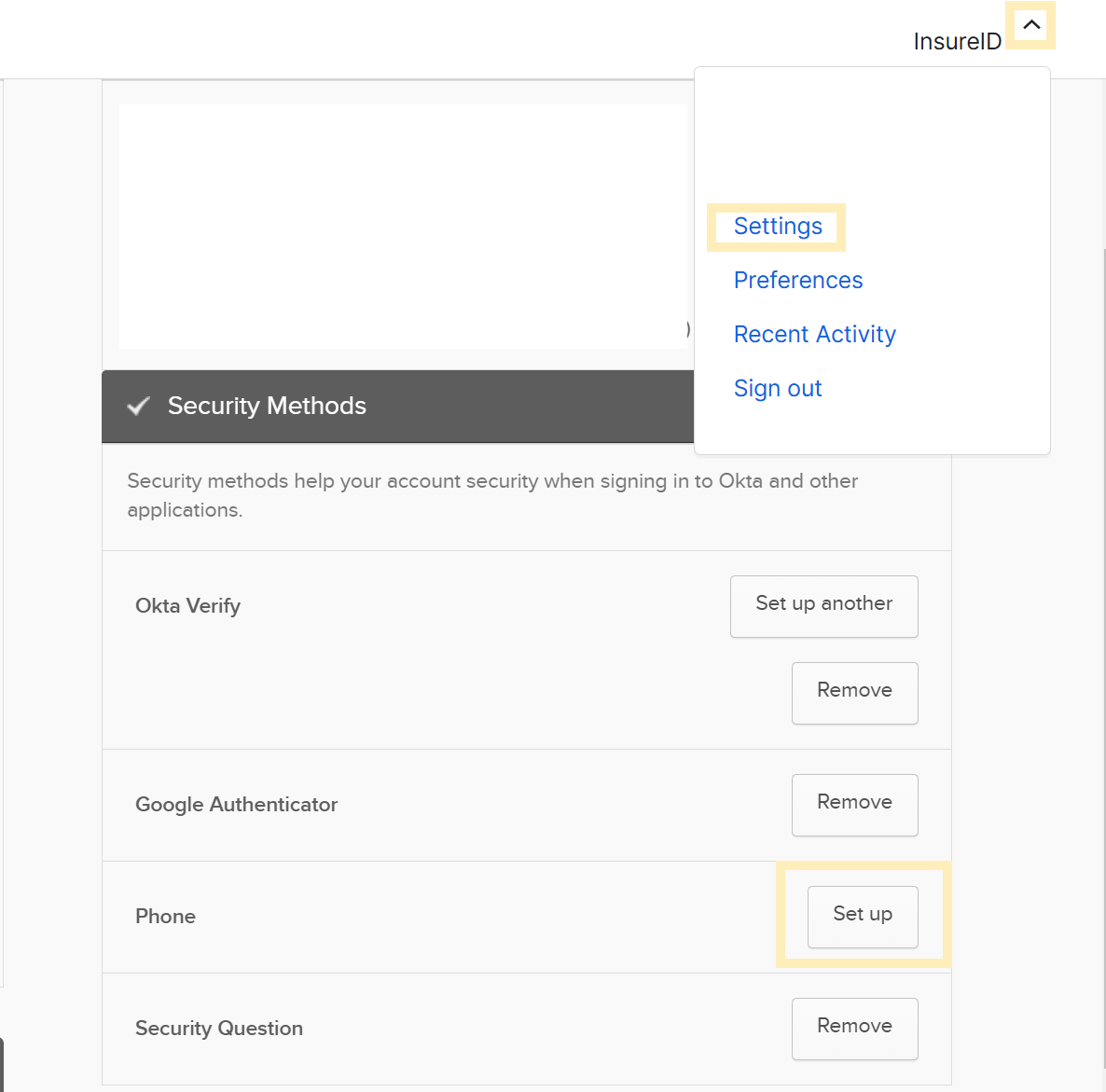
At the top-right, select your username, and then select Settings.
-
To add another MFA to your device, select Set up next to the MFA method you want to add.
tipFor example, if you want to add SMS authentication to your mobile device, select Set up next to Phone:
-
Authenticate with InsureID.
To remove MFA from mobile devices
-
On your computer, log in to https://insureid.okta.com.
-
At the top-right, select your username, and then select Settings.
-
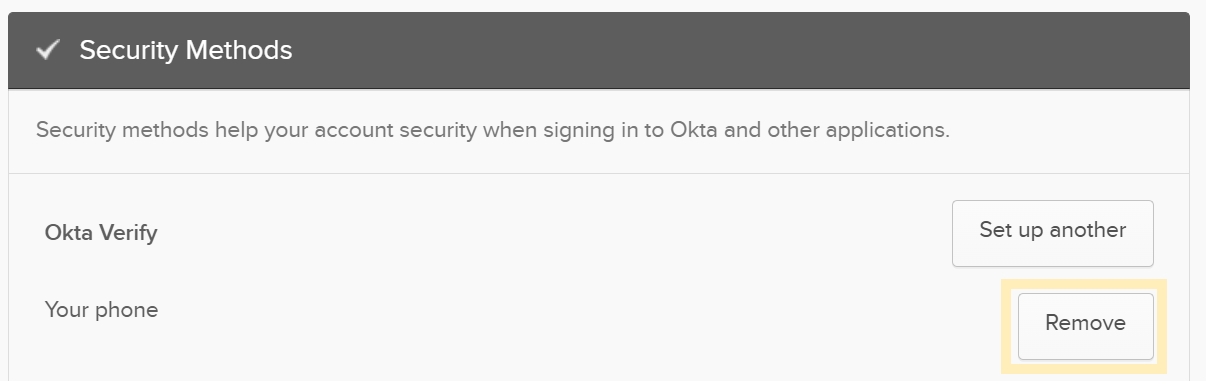
To remove MFA from your device, select Remove next to the MFA method you want to remove.
-
To remove a device from Okta Verify, select Remove next to your device.
-
Select Yes.
-
Authenticate with InsureID.